Moonlight-Axixi & Sunshine LAN Streaming Tutorial
Quick Setup
New to this? Follow these five steps and you’ll be streaming in under 10 minutes.
1. Install both apps
- Host PC: download and install Sunshine → LizardByte/Sunshine Releases
- Android: download and install the moonlight-axixi APK → Axixi2233/moonlight-android Releases
2. Set Sunshine credentials
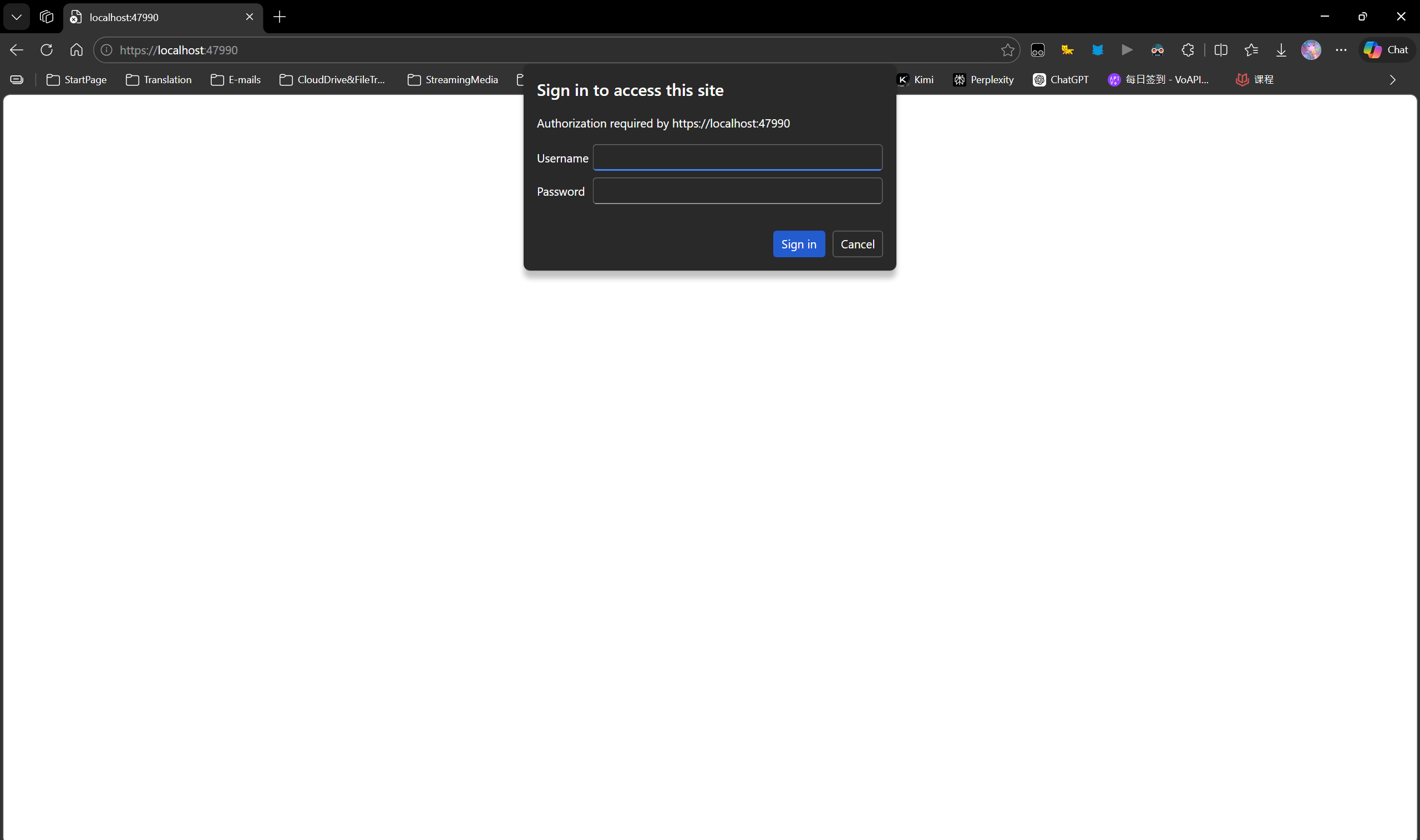
Open https://localhost:47990 in your browser. On first launch you’ll be prompted to create an admin username and password — set them and log in.
3. Add the host IP on the client
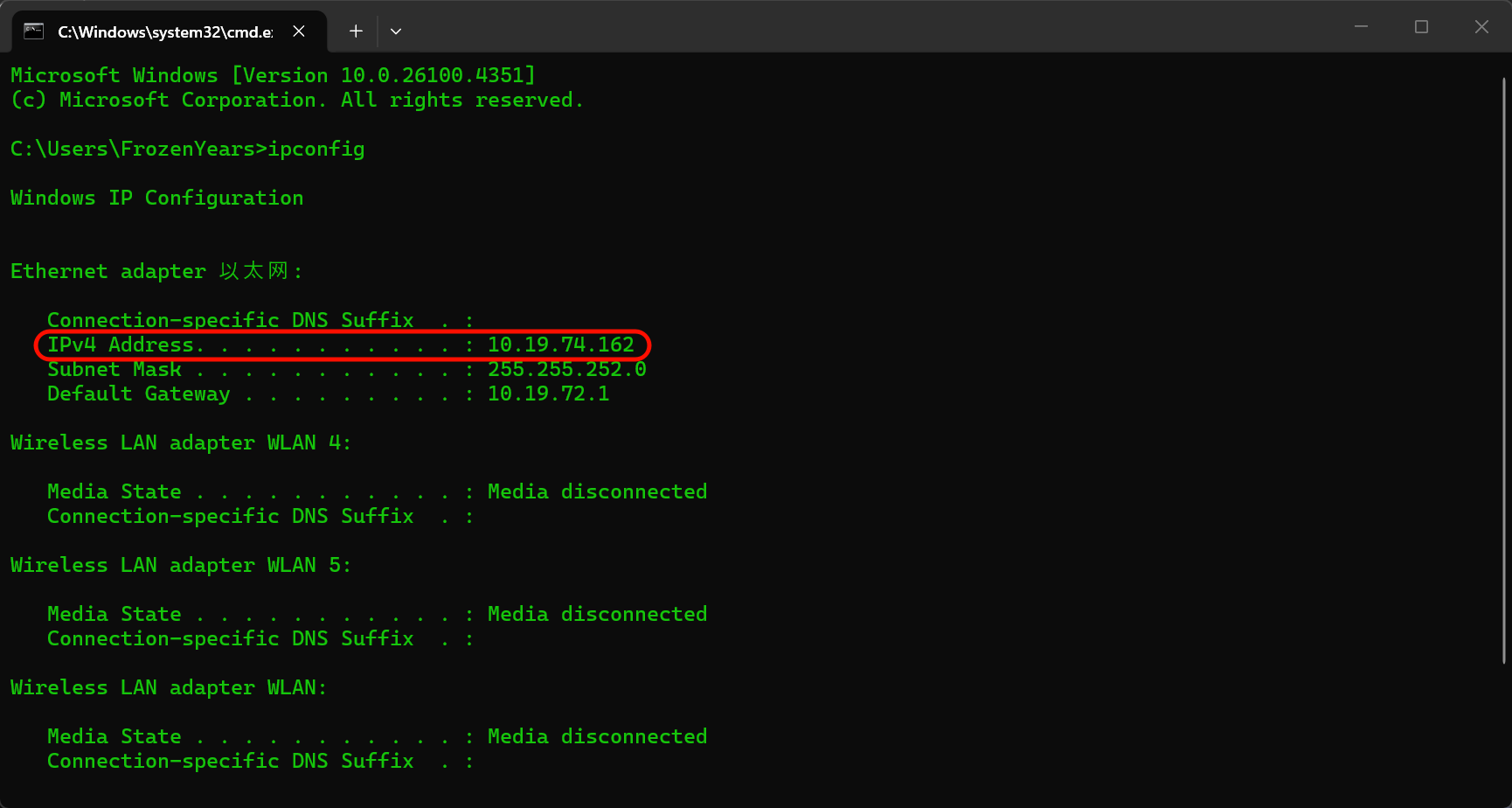
On the host PC run ipconfig and note your IPv4 address (e.g. 192.168.1.100).
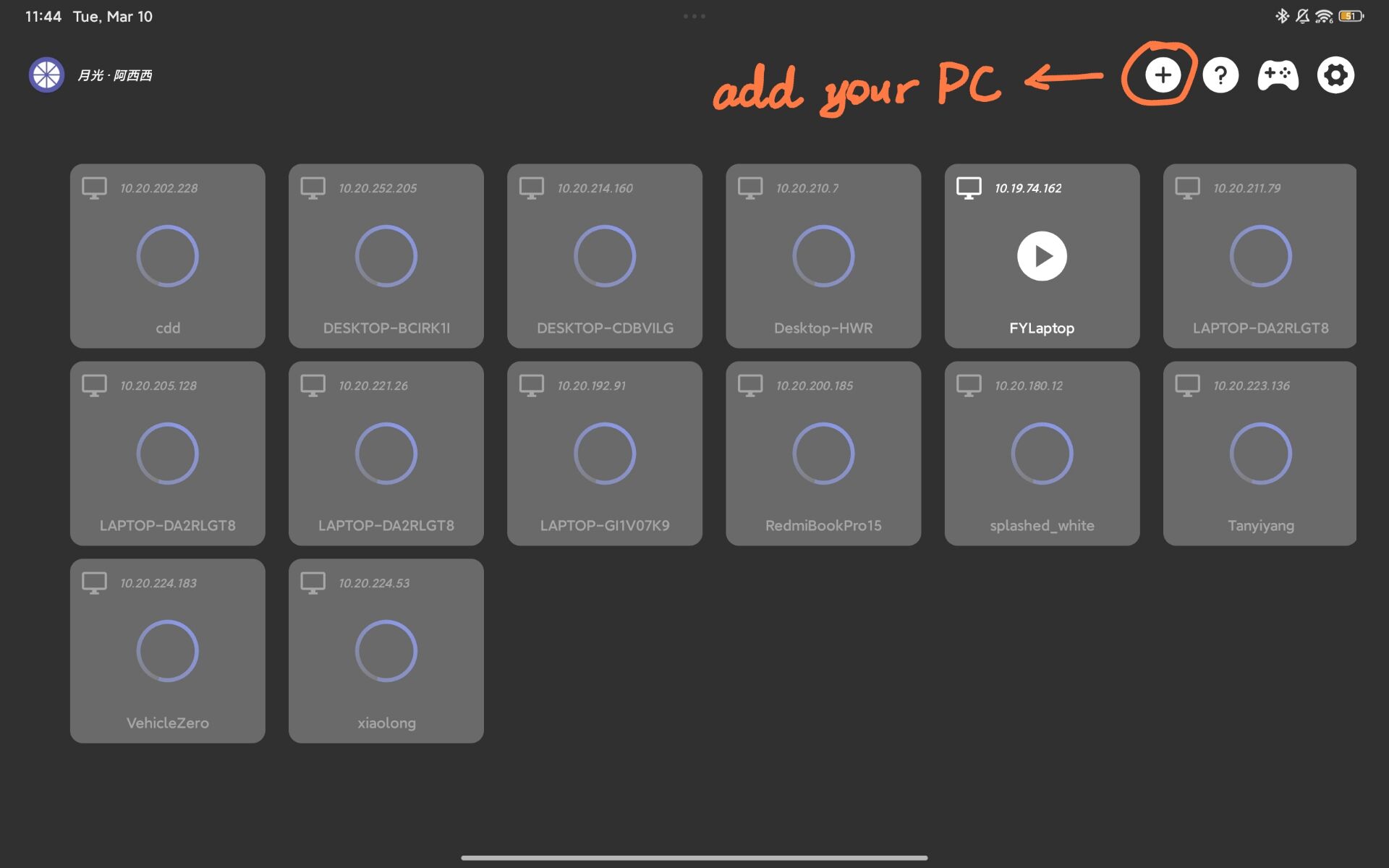
In moonlight-axixi, tap + in the top-right corner and enter that address.
4. Pair with a PIN
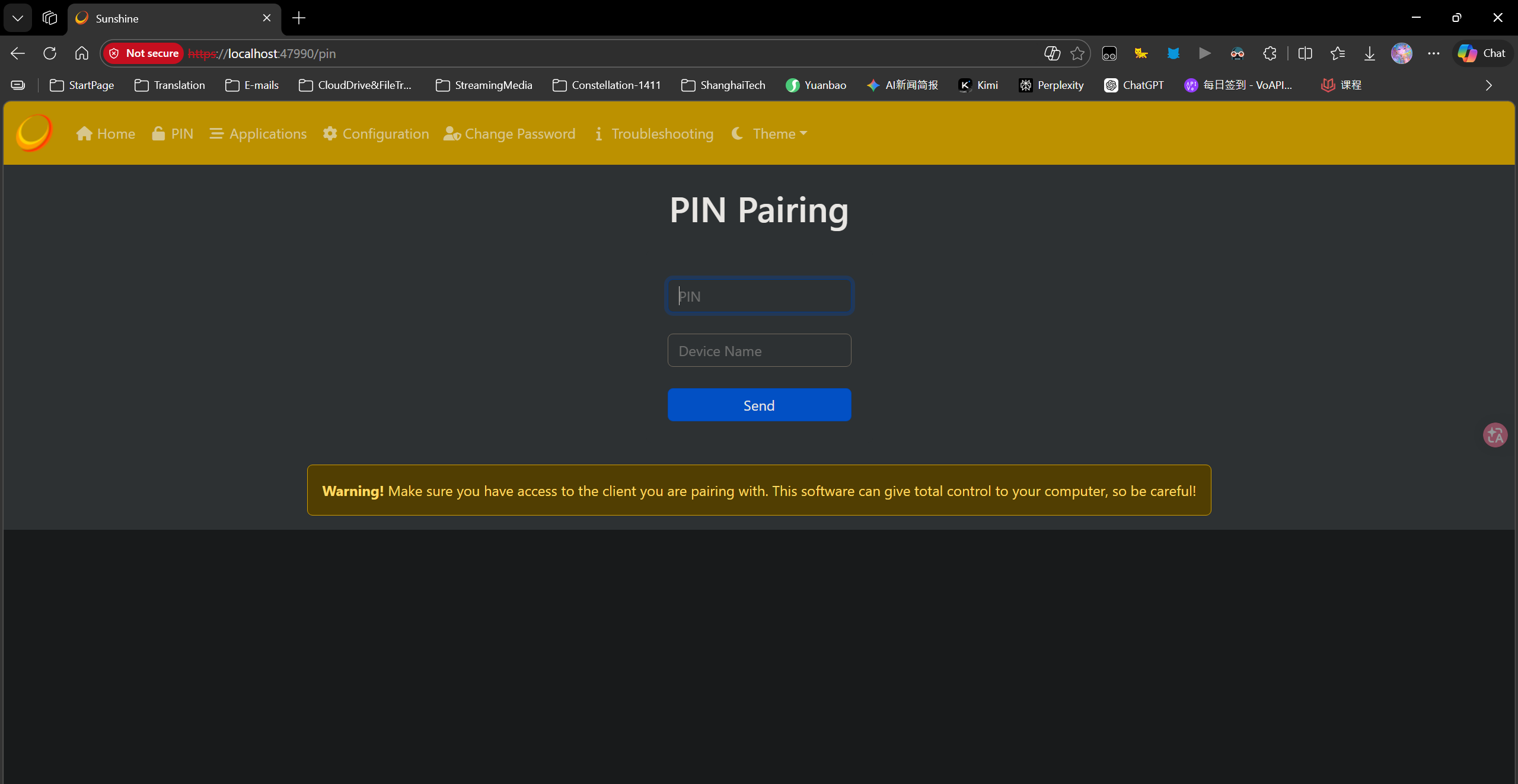
moonlight-axixi will display a 4-digit PIN. On the host open https://localhost:47990, navigate to the PIN pairing page, and enter the PIN.
5. Connect and play
Tap the host card in moonlight-axixi to launch the stream. Done.
1. Overview
1.1 What is This Setup?
LAN streaming: push your PC’s display to another device in real time and control games from the client. This guide uses an Android phone/tablet as the client.
Android tablet with wireless keyboard and mouse is highly recommended.
It means a portable computer with full capacity.
| Component | Description |
|---|---|
| Sunshine | Open-source streaming server, runs on the host PC. |
| moonlight-axixi | Community fork of Moonlight for Android. Enhanced gamepad support, display options, and additional input modes. |
2. Requirements
| Item | Requirement |
|---|---|
| Host OS | Windows 10 / 11 |
| Host GPU | Hardware encoding support (NVENC / AMF / QSV — any one) |
| Network | Host and client on the same LAN; wired recommended |
| Client | Android phone / tablet |
LAN streaming doesn’t demand much bandwidth, but latency is everything. Wired Ethernet on the host and 5GHz Wi-Fi (or wired) on the client is the ideal setup.
3. Sunshine (Host Setup)
3.1 Download & Install
Download the latest Windows installer from GitHub Releases:
Run sunshine-windows-installer.exe with default options. Sunshine installs as a system service and starts automatically.
3.2 First Launch
Open the Web UI in your browser:
1 | https://localhost:47990 |
The browser will warn about an untrusted certificate — this is a local self-signed cert. Click through to proceed.
On first launch you’ll be prompted to create an admin username and password. Set these, then log in.
3.3 Video Encoder Configuration
Go to Configuration → Advanced and select a hardware encoder:
| GPU Brand | Recommended Encoder |
|---|---|
| NVIDIA | NVENC (H.264 / HEVC / AV1) |
| AMD | AMF (H.264 / HEVC) |
| Intel | QSV (H.264 / HEVC) |
Codec selection:
- H.264 — Best compatibility. All devices support it. Start here.
- HEVC (H.265) — Lower bitrate for the same quality. Client needs hardware decode support.
- AV1 — Best compression. NVIDIA 40-series+ / AMD RDNA3+ only.
On LAN with plenty of bandwidth, H.264 is the easiest choice.
3.4 Firewall
Sunshine adds firewall rules automatically during install. If pairing fails, manually verify these ports are allowed in Windows Firewall:
| Protocol | Ports |
|---|---|
| TCP | 47984, 47989, 47990, 48010 |
| UDP | 5353, 47998, 47999, 48000, 48002, 48010 |
4. moonlight-axixi (Client Setup)
4.1 Download & Install
Download the latest APK from GitHub Releases:
Axixi2233/moonlight-android Releases
Install the .apk on your Android device (enable “Install from unknown sources” if prompted).
4.2 vs. Official Moonlight
moonlight-axixi is an actively maintained fork with substantial additions over the official client. Key differences:
| Feature | Official Moonlight | moonlight-axixi |
|---|---|---|
| Virtual gamepad protocol | Standard only | Force DS4 protocol option |
| Screen alignment | Center only | Left / Center / Right |
| Stick vibration | All vibration on | Can disable stick vibration independently |
| Custom virtual buttons | Not supported | Full import / export of custom layouts |
| Custom resolution & bitrate | Fixed presets | Freely adjustable |
| Mouse modes | Standard | Normal / Multi-touch / Trackpad / Disabled / Local cursor |
| Portrait (vertical) mode | Not supported | Supported |
| Gyroscope as right stick | Not supported | Supported (requires DS4 protocol in Sunshine) |
| Trigger dead zone | Fixed 13% | Can be disabled entirely |
| DS5 / NS Pro USB driver | Not supported | Built-in; DS5 supports adaptive trigger modes |
| Decoder low-latency mode | Not supported | Toggle in stream menu (supports MTK / Snapdragon 8 Gen 2+) |
| Notch fill | Not supported | Fills display cutout area |
| Floating action ball | Not supported | Quick access to menu, keyboard, full keyboard |
| Gamepad debug screen | Not supported | Gyroscope, trigger rumble, and PS5 adaptive trigger test |
| In-stream shortcut keys | Limited presets | Fully editable list; Win+P and others added |
5. Pairing
5.1 Get Host IP
On the host PC, press Win + R, type cmd, and run:
1 | ipconfig |
Find the IPv4 Address for your active network adapter, e.g. 192.168.1.100.
5.2 Add Host in moonlight-axixi
- Open moonlight-axixi, tap + in the top-right corner
- Enter the host IP address
- Confirm and wait a moment
5.3 Enter PIN Code
This step requires simultaneous action on both the host and client.
- moonlight-axixi displays a 4-digit PIN code
- On the host, open
https://localhost:47990 - Sunshine shows a pairing request — enter the PIN from the client
- Pairing complete. The host card appears on the client.
6. Recommended Settings
Long-press the host card in moonlight-axixi → Settings:
| Setting | Recommended | Notes |
|---|---|---|
| Resolution | 1080p | Match your host monitor resolution |
| Frame Rate | 60 FPS | Cap for most games |
| Video Bitrate | 30–50 Mbps | LAN has headroom — push it up |
| Video Codec | H.264 | Best compatibility |
| Optimize Game Settings | Off | Prevents Sunshine from overriding in-game settings |
Bitrate reference:
- 1080p 60FPS → 20–30 Mbps is plenty
- 1440p 60FPS → 30–50 Mbps
- Push to 50+ Mbps for maximum quality — LAN has no bottleneck
7. Troubleshooting
7.1 Host Not Found / Connection Failed
- Confirm host and client are on the same LAN
- Check Windows Firewall — ensure Sunshine ports are allowed
- Enter the IP manually instead of relying on auto-discovery
7.2 Sunshine Fails to Start
1 | wstring_convert::from_bytes |
Cause: Windows locale settings incompatible with Sunshine’s string handling.
Fix: Control Panel → Region → Administrative → Change system locale → check “Beta: Use Unicode UTF-8 for worldwide language support” → Restart.
7.3 High Latency / Lag
- Switch the client to 5GHz Wi-Fi or wired
- Lower Video Bitrate to reduce encoder pressure
- Sunshine Web UI → Configuration → Advanced → reduce Min/Max Threads to avoid scheduling overhead
7.4 Gamepad Not Recognized
- In moonlight-axixi settings, set the virtual gamepad protocol to DS4 (forced)
- Sunshine → Configuration → Input → confirm gamepad emulation is enabled